
WordPress is more than just a blogging platform — it’s also an excellent lightweight CMS. Many non-blog websites are built with WordPress too. Publishers using the WordPress platform account for roughly 10% of all websites globally, and the official WordPress.com site sees 300 million unique monthly visitors.
However, there’s an important concern as your WordPress site grows richer in content — more images, plugins, and themes piling up. A healthy website needs periodic backups, and the importance of backups goes without saying. Many novice webmasters don’t take backups seriously, only to find themselves helpless when something goes wrong. Data loss, SEO penalties follow in quick succession, and by then it’s too late for regrets. Traditional backup methods are tedious and time-consuming. Today I’m recommending a WordPress backup and restore plugin powerhouse — UpdraftPlus.
UpdraftPlus can back up all your database files, uploaded files, and even plugin data — arguably the most comprehensive WordPress backup tool available. UpdraftPlus also uses volume-based transfers by default, greatly reducing server timeout and connection interruption issues. What are you waiting for? Install it now!
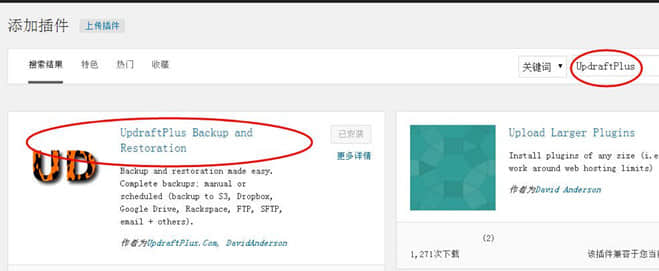
First, log into your admin panel, search for the plugin in “Add Plugins,” and install it:
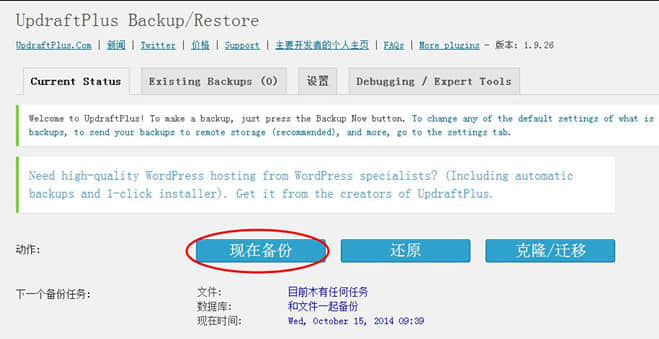
Find the plugin in your installed plugins list, click Settings to enter the plugin interface, select the backup feature as shown, then click “Backup Now” and follow the prompts. Note: before backing up, click the Settings button to check whether cache and updates are excluded. If not excluded, the restore may encounter unpredictable errors.

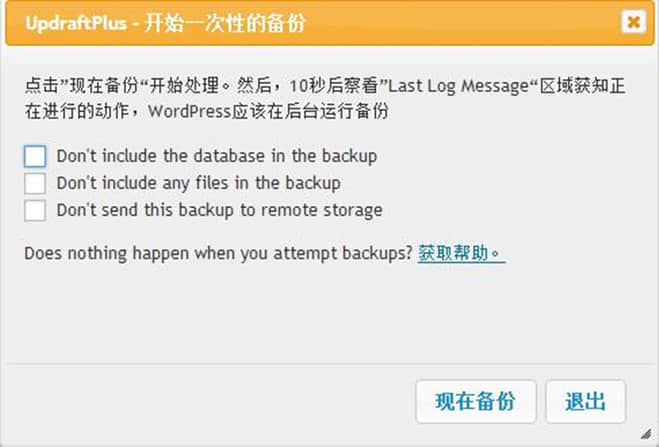
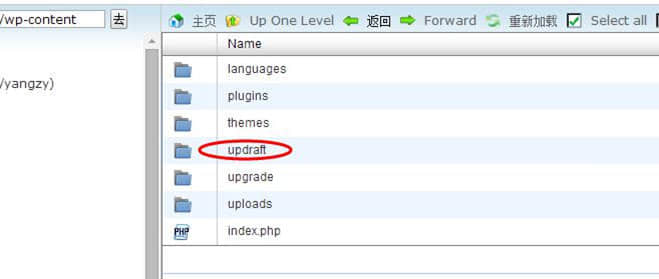
After the backup completes, open your file manager, find the updraft directory inside wp-content, compress the entire directory, and download it locally. Then install a fresh WordPress instance, install the UpdraftPlus plugin the same way, go to the plugin’s settings panel, click Restore, select the content to restore, and confirm. (Restoration may take a while — please be patient.)
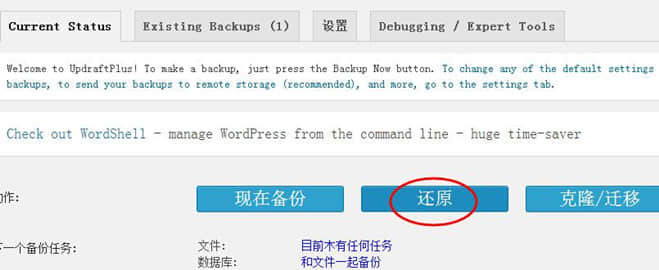
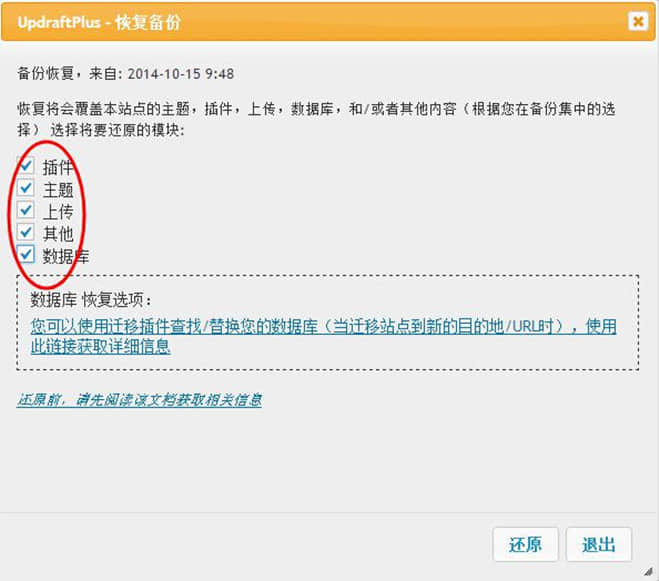
If downloading feels like a hassle, UpdraftPlus also offers various remote backup options including Email, FTP, and more. You can also set up scheduled backups — it truly addresses every WordPress backup concern and headache.

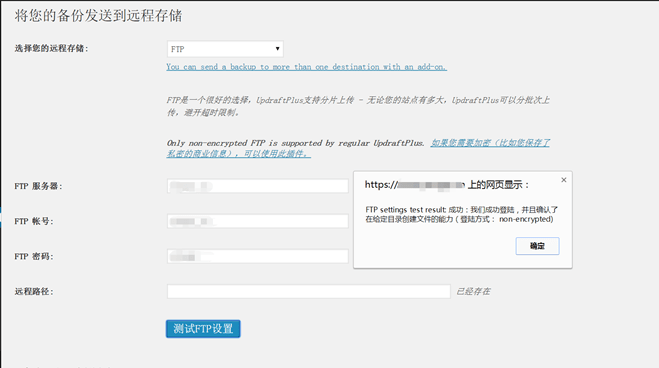
Taking FTP backup as an example: go to the plugin settings, select FTP remote storage, enter your FTP account and server details, click Test, and once it passes, backups will be sent to your designated FTP server.
Of course, WordPress offers many other backup plugins. Here’s a brief overview of a few:
Dropbox
This plugin backs up WordPress to Dropbox cloud storage. Quite a few people use it. Even though Dropbox is blocked in China, it doesn’t stop us from backing up.
BackUpWordpress
Great for WordPress beginners. Very simple to use — you can set backup schedules, back up both databases and files, and have backups sent to your email.
WP Clone
WP Clone is a convenient WordPress cloning plugin. You don’t need to enter any FTP or database credentials to achieve site backup, restoration, and cloning.
I won’t go into detail about the others — choose based on your personal preference.