
I’m a die-hard Chrome user — for over a decade Chrome has been the only browser I use. The feature I use most often is in-page search.
A simple ⌘ + F opens the in-page search bar, and you can find your keyword on the current page instantly. But it only supports one keyword at a time. If you want to search for multiple keywords on the same page, you have to repeat the search several times — which is a pain.
Chrome Extension: Multi-highlight
I happened to come across this Chrome extension on Sspai today, and it solves the problem perfectly.
It lets you highlight multiple keywords on a page simultaneously. Just separate your keywords with a space or a newline while typing, and the extension will search for all of them in the current page.
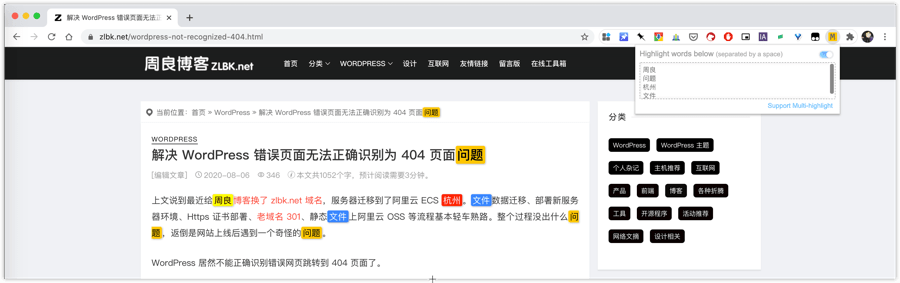
As shown above, I searched for four keywords — “周良” (my name), “问题” (issue), “杭州” (Hangzhou), “文件” (file) — all at once. Multi-highlight highlights each keyword in a different color, making it much easier to spot and distinguish them.
Chinese support is basically flawless. For digging through information on specific pages, it’s a joy to use.
Quick Shortcut Tip
You can bind a custom keyboard shortcut to the extension in Chrome, which makes it much faster to use. Steps:
- Open a new tab.
- Type
chrome://extensions/shortcutsin the address bar and press Enter. - Find Multi-highlight in the list and assign a shortcut.
Installing Multi-highlight
You can grab Multi-highlight for free from the Chrome Web Store.
Comments