
Gravatar stands for “Globally Recognized Avatar,” and mainstream blogging systems like WordPress all use Gravatar avatars by default.
Lately, while visiting various blogs, I’ve noticed that many can’t display Gravatar avatars — apparently the service has been blocked by the Great Firewall. I don’t know if you’ve experienced this, but things are looking pretty dire on my end…
So this article provides several methods for caching Gravatar avatars. Not only does this prevent avatars from being blocked, but it also improves your site’s loading speed.
1. Caching Gravatar Avatars with Plugins
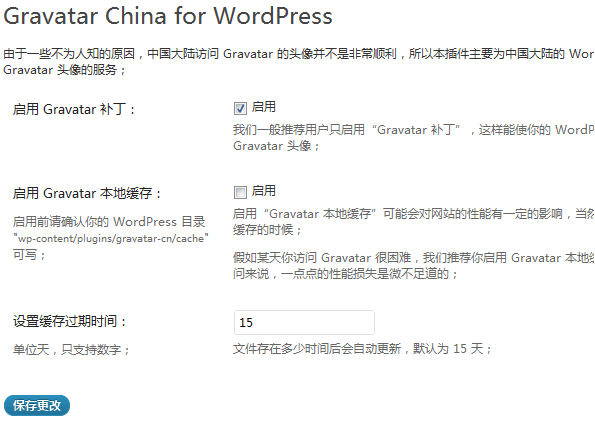
Plugin 1: Gravatar China
(Here are some of this plugin’s features, along with a backend settings screenshot)
- Gravatar anti-blocking patch: Replaces the Gravatar URL with one that’s accessible;
- Local Gravatar cache: Caches avatars locally for use in restricted network environments;
- Customizable cache expiration time;
Plugin 2: WP Gravatar Mini Cache
- A lightweight Gravatar avatar caching plugin;
- Caches Gravatar avatars locally to speed up loading, eliminating dependency on Gravatar server connectivity;
Both of these plugins were created by talented Chinese developers, and both have Chinese interfaces. I don't use either one myself. The former has a more comprehensive settings panel, while the latter is completely hands-free — just install, activate, and you'll see results!
Plugin 3: Gravatar Local Cache
- English interface
- One-click avatar caching
I personally use the gravatarlocalcache plugin. The backend is very simple — no settings to change, just click Update Options and you’re done.
This is probably even simpler than WP Gravatar Mini Cache — perfect for anyone who prefers a set-and-forget solution or is new to WordPress.
2. Caching Gravatar Avatars with Code
I stumbled upon this method online, and it’s said to work quite well. If you’re willing to spend a few minutes on it, read on.
- Create a directory called
/avatarin the same directory aswp-content, with permissions set to755. This is where cached Gravatar images will be stored. - Prepare a default avatar image sized appropriately for your theme, name it “default.jpg”, and place it in this directory.
- Find the original
comments.phpor thefunction mytheme_comment($comment, $args, $depth)infunctions.php. There should be a line similar to:<?php echo get_avatar($comment,$size='50',$default='<path_to_url>' ); ?>. Replace it with:
$p = 'avatar/';
$f = md5(strtolower($comment->comment_author_email));
$a = $p . $f .'.jpg';
$e = ABSPATH . $a;
if (!is_file($e)){ //Update when avatar doesn't exist
$d = get_bloginfo('url'). '/avatar/default.jpg';
$s = '50';
$r = get_option('avatar_rating');
$g = 'https://www.gravatar.com/avatar/'.$f.'.jpg?s='.$s.'&d='.$d.'&r='.$r;
copy($g, $e);
if ( filesize($e) == 0 ){ copy($d, $e); }
};
<img src='<?php echo $a ?>' alt=" />For some themes, this may cause avatars to not display.
In that case, simply change $p = 'avatar/' to $p = '/avatar/'
Note that this code-based method only works for comment avatars on individual post pages.
If you’re using the wp-recentcomments plugin or WordPress Thread Comment and want to know how to cache their avatars locally, check out these two articles:
Wange: Caching Gravatar Avatars to Your Local Server — provides a solution for avatar caching with WordPress Thread Comment.
Whisperer: Fully Enabling Gravatar Avatar Caching — provides a method for enabling avatar caching with wp-recentcomments.