

By default, WordPress or your hosting provider controls the maximum upload file size. If you try to upload a file exceeding the preset limit, the upload will fail. This article explains several ways to customize the upload file size limit.
Check the Default WordPress Upload File Size
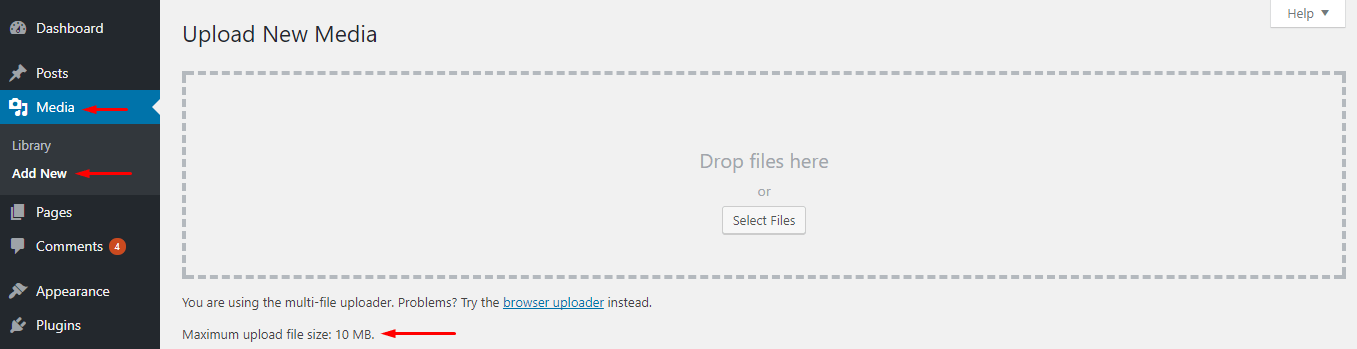
Navigate to “Media - Add New” in the dashboard menu. On this page, you’ll find your site’s current default upload size limit. As shown in the screenshot below, my WordPress site has a default upload limit of 10MB. In this article, I’ll demonstrate several methods to change this limit to 20MB — feel free to set your own value.
Contact Your Hosting Provider
If you’re using a managed WordPress hosting platform, these platforms typically offer a default option to customize the file upload size limit (in most cases, the settings page can be found in your server management dashboard).
Take Cloudways as an example: after logging in, navigate to the “Settings & Packages” page from the menu. In the UPLOAD SIZE field, enter your desired maximum upload file size and click Save. 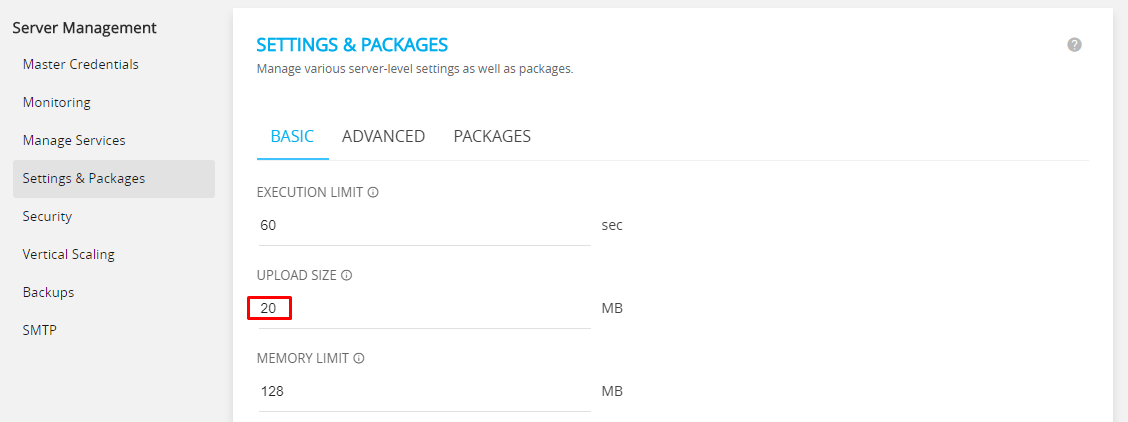
Modify or Create a php.ini File
php.ini is a configuration file located in the root directory. Some providers may name it “php5.ini.” It contains a series of settings including maximum upload file size, maximum execution time, upload directory, global variable controls, and more.
For security reasons, most hosting providers keep it hidden. To find this file, you’ll need to access the server’s root directory and may need to show hidden files. If you still can’t find it, create one yourself — just make sure the configuration it contains is correct. If you’re unsure what configuration values to include, a quick search will turn up plenty of detailed guides.
To set the maximum upload size to 20MB, we need to change upload_max_filesize to 20 and post_max_size to around 25MB.
upload_max_filesize = 20M
post_max_size = 25M
memory_limit = 30M
Note: “M” stands for “MB.” memory_limit should be equal to or greater than upload_max_filesize — to be safe, I’ve set it to 30MB.
Modify/Create an .htaccess File
.htaccess stands for “distributed configuration file.” It’s a configuration file used by the Apache server. It’s typically located in the root directory and may be hidden — you can find it by enabling the display of hidden files.
If you locate this file, simply copy and paste the following code to achieve our goal:
php_value upload_max_filesize 20MB
php_value post_max_size 25MB
php_value memory_limit 30MB
Modify WordPress Configuration
The three methods above are what I consider the most reliable approaches. If none of them work, you can try pasting the following code into WordPress’s wp-config.php or your active theme’s functions.php:
@ini_set( 'upload_max_size' , '20MB' );
@ini_set( 'post_max_size', '25MB');
@ini_set( 'memory_limit', '30MB' );
Control Upload Size via a WordPress Plugin
One of the main reasons I love WordPress is its comprehensive ecosystem, with countless plugins that can solve virtually any problem. If you’d rather skip the manual configuration, I recommend a plugin called “Increase Max Upload Filesize.”
Search for and install it from the backend plugin directory. Once installed, go to its settings page and enter the desired size limit in bytes (1,024,000 bytes = 1 MB). If, like me, you want to set it to 20MB, simply enter 20480000 and click Save. 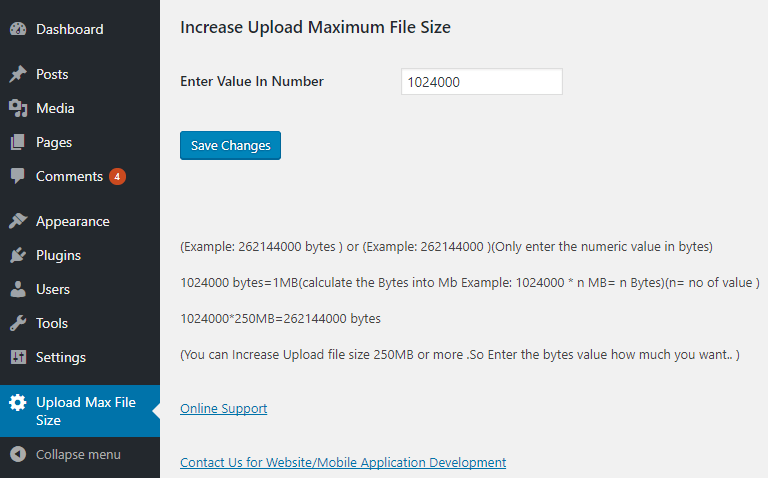
Still Haven’t Solved Your Problem?
If none of the five methods listed above resolved your issue, it’s simple — you can leave a comment and let me know, or reach out to your hosting provider via support tickets or email. They should be able to help.
If you’re the sole user of your WordPress site, you can always upload files via FTP to /wp-content/uploads/, then use the Media from FTP plugin to make those FTP-uploaded files appear in your media library.