
In my previous article, I introduced UPYUN, China’s first Amazon S3-like storage service. In that article, I covered using the Hacklog Remote Attachment plugin to upload images remotely to UPYUN, and mentioned that my blog stores static resources like JS, CSS, and background images on UPYUN (the method is straightforward: upload your theme’s CSS, JS, and background images to UPYUN, then update the CSS and JS paths in your theme’s header.php). Today I’m sharing how to push your entire WordPress site’s static files to UPYUN. The key ingredients are the classic WordPress caching plugin W3 Total Cache paired with UPYUN to achieve full-site CDN acceleration.
Here’s how:
-
Install the W3 Total Cache plugin and activate it in the backend.
-
In W3 Total Cache’s General Settings, enable CDN and set the type to Self-hosted.
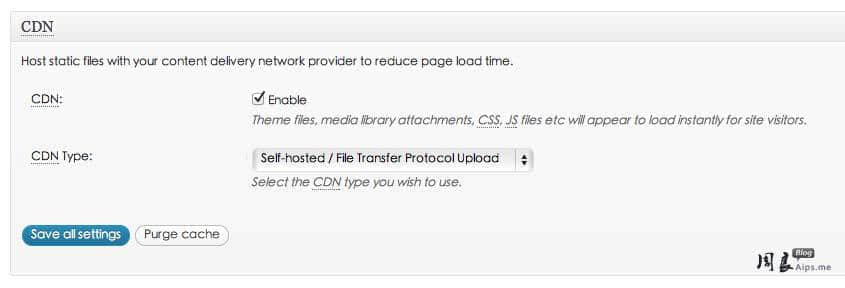
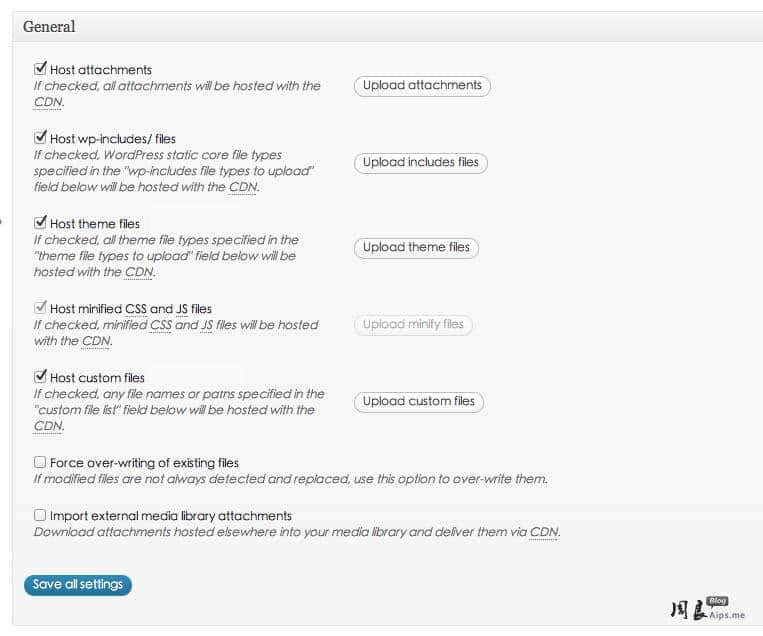
- In the plugin’s CDN options, check the boxes as shown in my screenshot. Other options can be configured based on your needs.
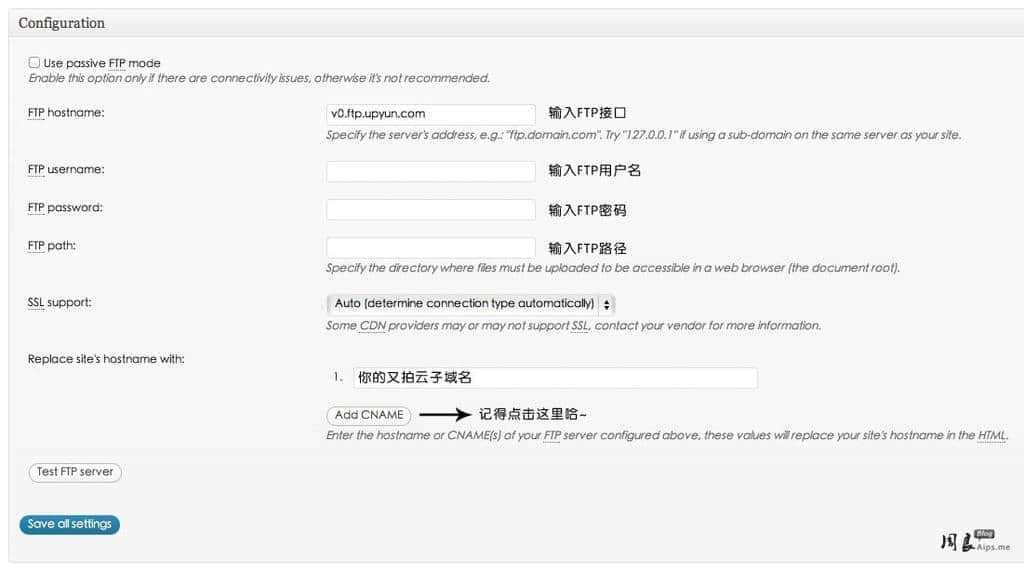
- In the configuration, enter the FTP username and password you set up in the UPYUN backend. For the FTP host, I recommend using v0.ftp.upyun.com. Set the FTP path according to the actual path under your domain; if your sub-site uses a subdomain, it’s best to create a separate UPYUN storage space for each. For the hostname, fill in your details accordingly — if you’ve bound a custom domain on UPYUN (requires ICP filing), enter that domain. Remember to click “Add CNAME” after filling everything in.
- After completing all the settings, the final step is to use FTP to upload all your current attachments, JS, CSS, background images, and wp-includes static files to the UPYUN storage space.
Here are the benefits of this approach:
- You can push all of your WordPress site’s static files to UPYUN’s CDN service, improving overall site loading speed;
- Attachments uploaded through the backend will be stored on both your WordPress server and UPYUN’s storage space. Visitors will automatically request files from UPYUN (displaying UPYUN’s resources), providing double data protection with simple operation;
- Changes to theme templates in the WordPress backend will be synced to UPYUN;
- If you need to switch CDN providers in the future, your site’s accessibility will remain largely unaffected during the transition.
If you’re interested in UPYUN cloud storage, you can get a discount code here for 5% off renewals and purchases.